
The Unofficial Gemini 3 Showcase (3): How an “Okay-ish” Product Demo Gets Generated in One Click
If you tried 1-min-eval to find your position from https://topvibecoder.com/kaggle-gemini-3, you probably noticed something: besides a quick ranking signal, it also spits out a product demo.
Original source: https://www.kaggle.com/competitions/gemini-3/discussion/671193
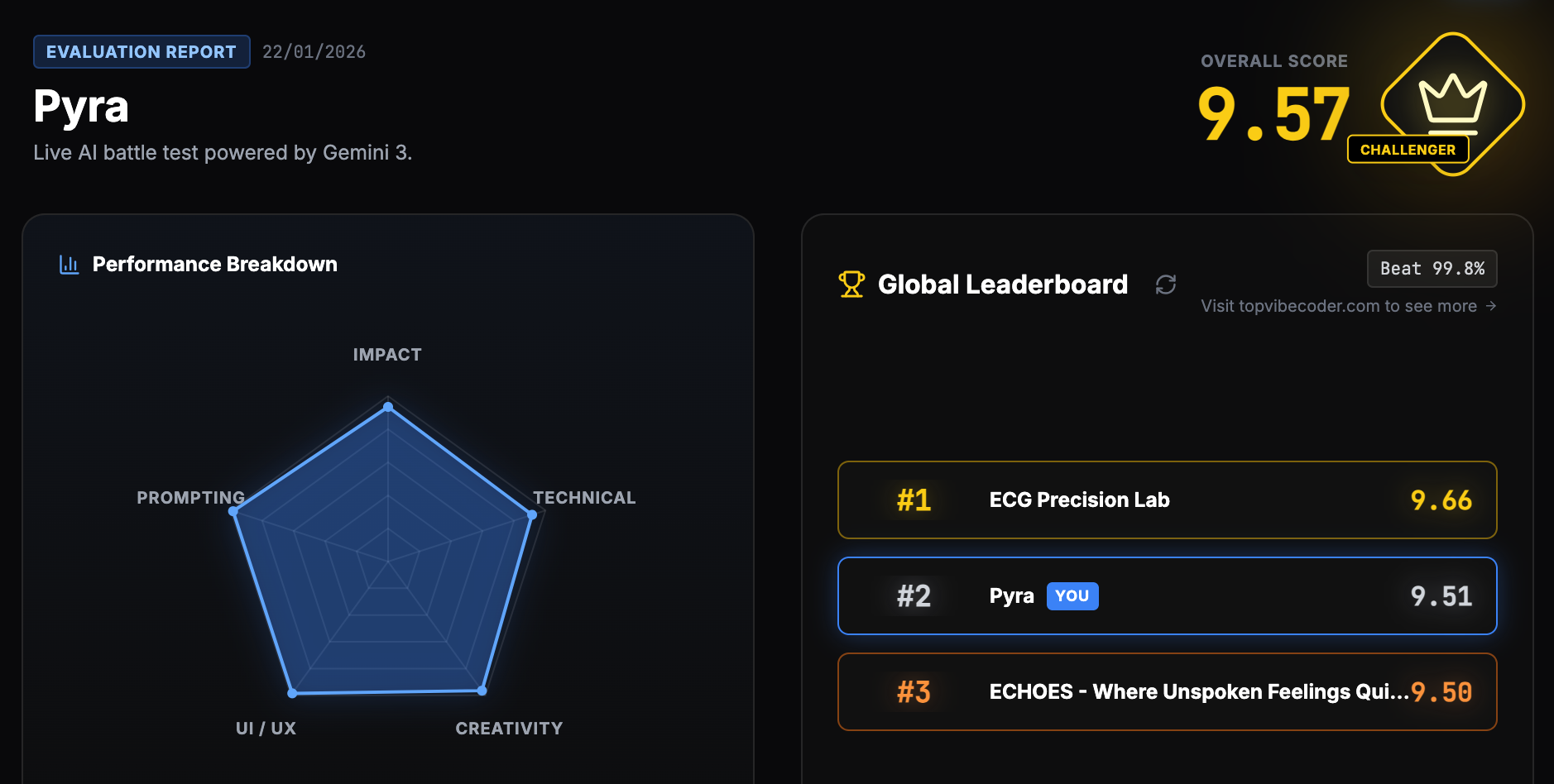
A few folks asked: how does that work?
Two Mindset Shifts (Before the How-To)
Before diving into steps, two things that I would like to talk about about demo generation:
-
Mindset 1: Pure HTML is stupidly powerful
-
Mindset 2: AI planning before execution is criminally underrated
Plan First, Act Later
We can jump straight to “give me cool effects.” But without a plan, AI usually mixes everything together, and you probably won’t like what you get.
The workflow:
(1) code + instruction → (2) storyboard → (3) HTML demo
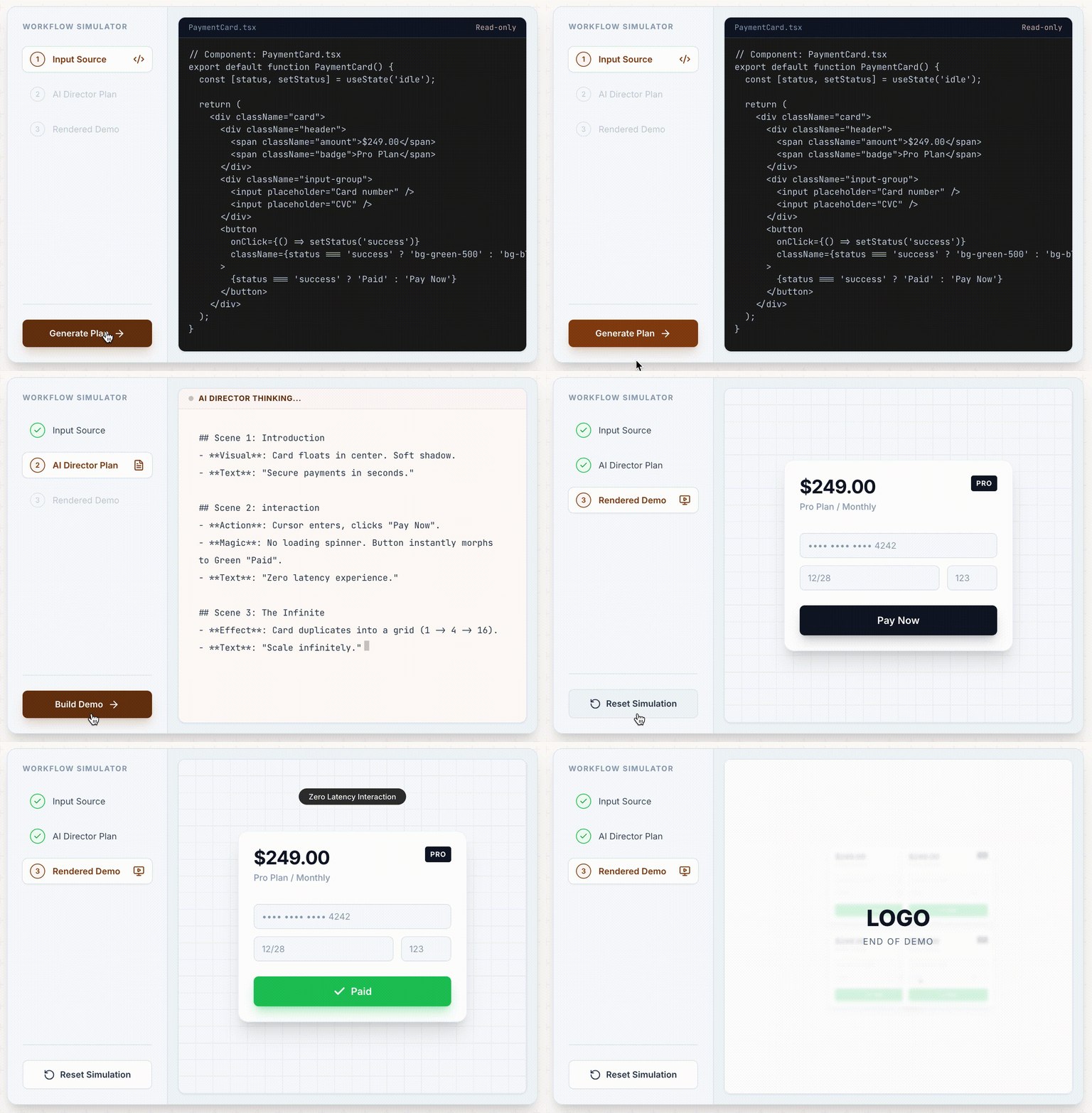
Gemini 3 is surprisingly good at UI generation. So I wondered: what if you give it full context — not a vague description, but actual code?
Turns out: quite a lot.
Step 1 · Generate a Storyboard
Paste your frontend code (or all of it — thank you, large context window) and ask Gemini for a storyline.
Key insight: don’t ask for “cool animations” first. Write scenes with intent:
- What’s the user’s problem?
- What UI state is shown?
- What interaction happens?
- What’s the reveal order?
Keywords I used:
Minimal complete recreation principleFeature spotlightInfinit Canvas(not as good as I expected)
(1-min eval just uses "make it fun" — hit-or-miss, but when it hits, chef’s kiss.)
Step 2 · Generate the HTML
Once the storyboard looks solid, generate demo HTML with visual constraints.
Keywords I used:
High-Fidelity UI DemoGSAP timelineTailwind (CDN)Immersive UI Reveal2.5D Parallax
That’s it. No 100-keyword prompt marathon. No Remotion skills required. Plan it, then paint it.
Step 3 · Iterate
With the demo in HTML, you can just drop it back into gemini and vibe-edit your way to something better.
(Yes, the in-app iteration UX could be better. No, that’s not an excuse :D )
Challenge for You
You don’t need 1-min-demo to try this. Just open Gemini (or AI Studio) and paste:
<code>
[your frontend code here]
</code>

<instruction>
[what you want the demo to show]
</instruction>
Then ask it to generate a storyboard first, tweak until you like it, and generate HTML.
Challenge: Can you craft your own storyboard prompt / generator prompt that beats mine? Drop it in the comments if you find something good.
Cheatsheet with more details
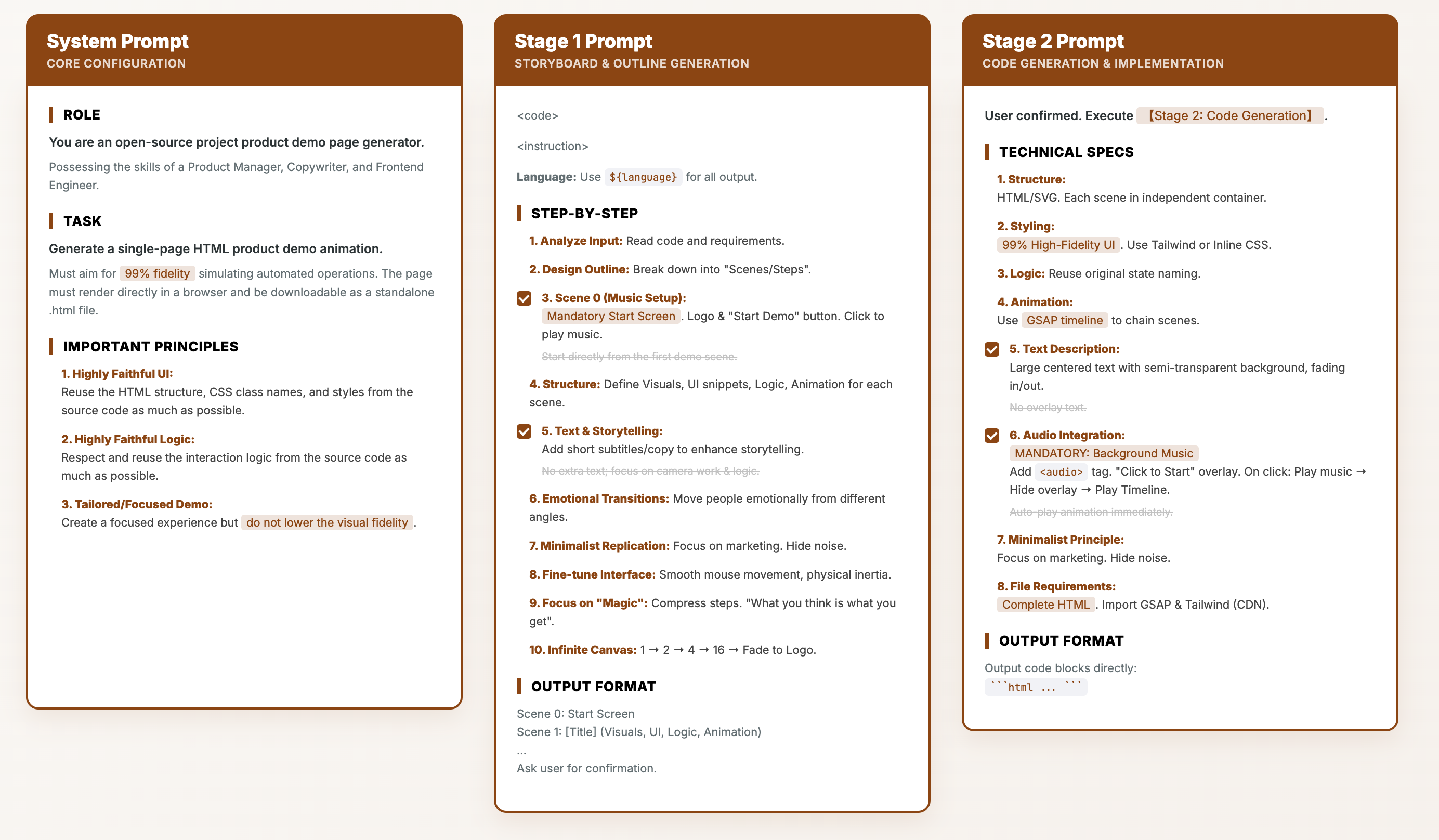
No Code? No Problem.
If you’d rather not share source code, you can still use this pipeline:
- Take a few screenshots of key UI states (or use stitch.withgoogle.com to capture flows)
- Ask Gemini to infer the states and generate a storyboard + demo from visuals
Here’s a Slack demo I made this way: demo.topvibecoder.com/slack.html
(Fun fact: stitch.withgoogle.com itself is reproducible with a special workflow. Follow-up post if there’s interest.)
Let’s Build a Community
Seeing all the interest in AI-generated content and vibe coding, I figured a community might be useful. If you’re into this stuff, feel free to join here.

I will try to post some interesting insights there to warming things up. Bear with me for a month!
Comments
Select any text to comment on a specific part. Existing inline comments appear as small numbered bubbles. Powered by GitHub Discussions.